Run Internet Speed Test
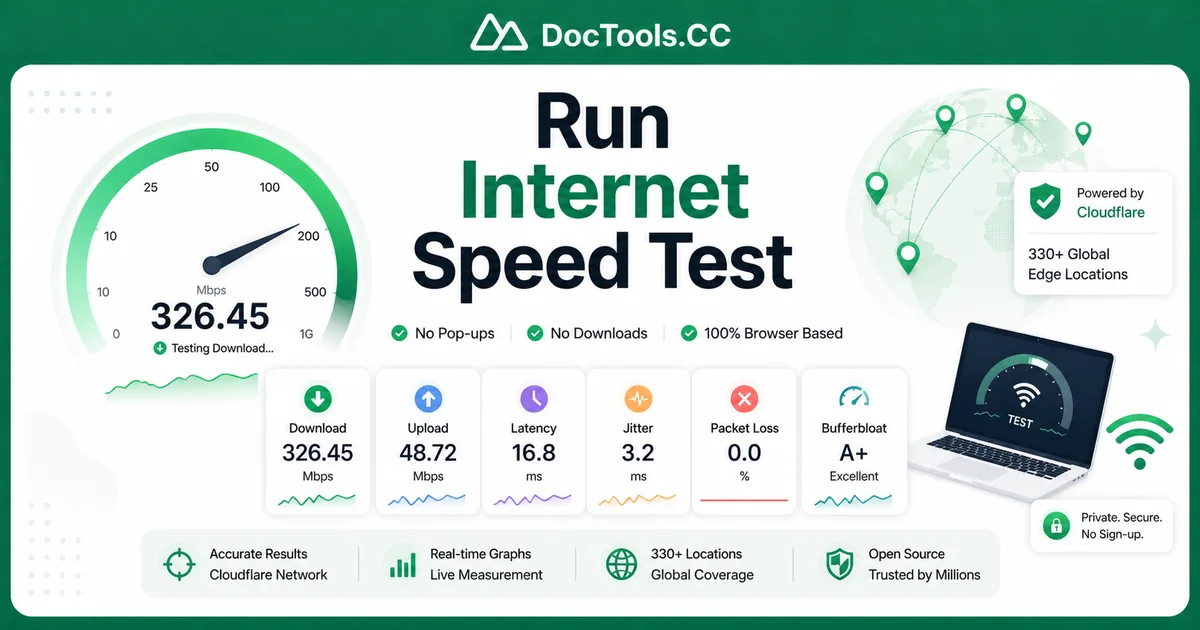
If you want to check your speed test without pop-ups, sketchy downloads, or confusing graphs, there is a better option. Many speed test sites force you onto one server, hide useful details, or push you to install an app before you can see real results.
Our Internet Speed Test keeps things simple. It runs fully in your browser using Cloudflare's open-source measurement engine, so you can measure download speed, upload speed, latency, jitter, packet loss, and bufferbloat in one place.
That matters because a fast internet plan does not always mean a smooth real-world experience. You can have high download numbers and still struggle with video calls, gaming, live streaming, or large uploads if latency jumps under load. A modern test should show more than one headline number, and this one does.
Why check your speed test this way?
When people check their connection, they usually want one clear answer: is my internet performing the way it should right now? To answer that well, the test needs to measure more than simple download speed.
This browser-based test uses Cloudflare's global edge network and anycast routing. Instead of depending on one far-away test server, traffic goes to a nearby Cloudflare data center from a network that spans 330+ locations. That helps produce results that better reflect your actual connection quality.
What makes this test different?
- Runs in your browser: no app, no extension, no sign-up.
- Powered by Cloudflare's open-source engine: the same core technology behind speed.cloudflare.com.
- Measures both directions: download and upload speeds are tested separately.
- Shows real connection quality: unloaded latency, jitter, packet loss, and bufferbloat are included.
- Uses practical ratings: badges like great, good, average, poor, and bad help you understand the numbers quickly.
- Easy-to-read visuals: a 270-degree gauge and live sparklines show how your connection behaves during the test.
Why these metrics matter
Download speed is only part of the story. If you stream movies, join Zoom calls, upload files, sync cloud backups, or play online games, other metrics can affect your experience just as much.
- Download: how fast data comes to your device.
- Upload: how fast data leaves your device.
- Latency: the delay between sending and receiving data.
- Jitter: how much latency varies over time.
- Packet loss: whether data packets fail to arrive correctly.
- Bufferbloat: how much latency rises while your connection is busy.
Bufferbloat deserves special attention. It often explains why a connection feels bad even when speed looks good on paper. If loaded latency jumps while the line is under stress, video calls can break up, game controls can feel delayed, and websites can become sluggish.
How to check your speed test step by step
Using the tool is straightforward, and the full process usually takes about 15 seconds. For the best results, take a moment to prepare your device and network first.
- Open the tool. Go to the Internet Speed Test page in your browser.
- Close heavy background activity. Pause downloads, cloud backups, streaming apps, and large uploads on your device.
- Limit other network traffic. If possible, ask others on your network to pause gaming, streaming, or file transfers for a minute.
- Click Start Test. The test begins directly in your browser with no installation required.
- Watch the live gauge and sparklines. The gauge auto-scales to fit your connection, whether you are on a slow DSL line or multi-gig fiber.
- Review your results. Check download, upload, latency, jitter, packet loss, and bufferbloat together instead of focusing on one number.
- Run the test again if needed. Repeat at different times of day to spot congestion, instability, or performance drops.
What happens during the test?
The engine uses modern browser technologies such as the PerformanceResourceTiming API, WebSockets, and WebRTC to measure the round trip more accurately. This helps capture conditions that lightweight tests often miss, including the TCP slow-start ramp and how the line behaves under load.
In simple terms, the tool is not just asking, “How fast can I download one file?” It is also asking, “How stable is this connection while I am actively using it?” That is much closer to the experience people care about every day.
How long does it take?
Most tests finish in around 15 seconds. That is fast enough for a quick check, but still long enough to collect useful data about your line quality.
How to read your results
Once you check your speed test, the next step is understanding what the numbers mean. A strong result depends on what you do online, the speed tier you pay for, and whether your connection stays stable while busy.
Download speed
Download speed affects activities like streaming, browsing, app downloads, and large file transfers. Higher is generally better, but you do not always need extreme numbers for everyday tasks.
- 10-25 Mbps: enough for basic browsing and single-stream video.
- 50-100 Mbps: solid for small households and several common tasks.
- 100-300 Mbps: strong for multiple users, 4K streaming, and larger downloads.
- 300+ Mbps: excellent for busy homes, power users, and large transfers.
This is why practical scoring matters. A connection does not need to hit 1 Gbps to be considered great for most households.
Upload speed
Upload speed matters for video meetings, cloud backups, sending large files, live streaming, and security cameras. Many people ignore upload until they start a call and everyone says they sound robotic.
If your upload is much lower than expected, live tasks may feel unstable even when downloads look excellent.
Latency and jitter
Latency is the response time of your connection. Lower latency usually feels better, especially for gaming, voice calls, remote desktop work, and interactive apps.
Jitter shows how consistent that latency is. A low average latency with high jitter can still cause stutters, lag spikes, and choppy audio.
Packet loss
Packet loss should ideally be 0%. Even a small amount can create problems for calls, gaming, and streaming, because missing packets often need to be resent or approximated.
Bufferbloat
Bufferbloat measures how much latency increases when your network is busy. This is one of the best indicators of whether a connection will stay usable during uploads, downloads, and video calls happening at the same time.
If your loaded latency jumps sharply, your line may feel sluggish under normal household use even if the raw speed numbers look high.
Common reasons your speed test looks wrong
If the results are lower than expected, that does not always mean your ISP is failing. A number of local factors can affect performance before traffic ever reaches the wider internet.
Wi-Fi limitations
Wi-Fi is convenient, but it is often the biggest source of speed loss and instability. Distance from the router, walls, interference, and old equipment can all reduce performance.
- Move closer to the router.
- Try the 5 GHz or 6 GHz band if available.
- Reboot the router if performance has dropped suddenly.
- Use Ethernet for the most accurate test possible.
Busy home networks
If someone is streaming 4K video, backing up a phone, downloading games, or uploading media while you test, your results may drop. This is especially noticeable on slower upload connections.
Device limits
Older phones, laptops, browsers, and network adapters may not keep up with very fast internet plans. If your router supports gigabit speeds but your device does not, the test will show the device's limit, not the full line capacity.
Time of day congestion
Some connections slow down during evening peak hours when more people are online. Run the test in the morning, afternoon, and evening to compare patterns.
VPNs and security software
A VPN can add latency and reduce throughput. Firewalls, browser extensions, or aggressive security tools can also interfere with measurements.
Tips & Best Practices
To get the most useful results, test with a method instead of taking one reading and guessing. Small changes in setup can make a big difference.
Best ways to get an accurate reading
- Use a wired connection when possible, especially for gigabit or multi-gig plans.
- Test more than once. Run at least two or three tests and look for patterns.
- Test at different times of day. This helps reveal neighborhood congestion.
- Pause background apps. Cloud sync tools, updates, and streaming apps can distort results.
- Compare multiple devices. If one device is slow and another is fine, the issue may be local to that device.
- Check both speed and quality. Do not focus only on download speed.
Best practices for troubleshooting slow internet
- Run a test on Wi-Fi.
- Run the same test on Ethernet.
- Restart the modem and router.
- Retest from the same device.
- Try a second device.
- Record the results, including latency and bufferbloat.
- Contact your ISP only after you have a few consistent readings.
If you need to share a test result with someone, you can quickly create a scannable link using the QR Code Generator. If you are working with technical logs or exported data from other network tools, the JSON / CSV / XML Formatter can help make that information easier to read.
For developers and IT teams troubleshooting web services after connectivity checks, the JWT Decoder & Verifier can also be useful when you need to inspect tokens during login or API testing.
When should you run an internet speed test?
You do not need to wait until the internet feels completely broken. Running a quick test at the right moment can help you catch issues earlier and understand what changed.
- Before and after rebooting your router
- When video calls start freezing or dropping
- After switching internet plans
- When moving your router to a new location
- After installing a mesh system or new modem
- When gaming latency suddenly feels worse
- When cloud backups or file uploads seem too slow
Use repeat testing to spot trends
A single test is a snapshot. Several tests over a few days tell a more complete story. If download speed is fine in the morning but poor every evening, or if bufferbloat spikes only during uploads, that pattern is valuable for troubleshooting.
Privacy and trust
One reason people hesitate to use online speed tests is trust. Some tools are cluttered with ads, trackers, or upsells, and others encourage users to install extra software.
This test is designed to avoid that friction. There is no sign-up, no cookie-based account system, and no desktop agent required. Your IP address is visible to Cloudflare for the duration of the test because the network has to communicate with your device, but there is no extra app to install just to get your numbers.
Final thoughts on how to check your speed test
If you want a fast, practical, and more honest way to check your speed test, use a browser-based tool that measures the whole connection experience, not just peak download speed. Looking at upload, latency, jitter, packet loss, and bufferbloat gives you a much clearer picture of what your internet is really doing.
Ready to see how your connection performs right now? Open the Internet Speed Test, click Start Test, and get a cleaner view of your internet speed and quality in about 15 seconds.
Frequently Asked Questions
How do I check my internet speed test accurately?
Use a modern browser, pause downloads and streaming, and run the test on a stable connection. For the most accurate result, test over Ethernet or stay close to your Wi-Fi router.
What is a good speed test result?
A good result depends on your online activity, but many homes work well with 100-300 Mbps download and solid upload performance. Low latency, low jitter, 0% packet loss, and low bufferbloat are also important.
Why is my download speed high but my internet still feels slow?
High download speed does not guarantee smooth performance. Latency spikes, jitter, packet loss, or bufferbloat can hurt video calls, gaming, and browsing even on a fast plan.
Does this speed test need an app or account?
No. The test runs fully in your browser, so there is nothing to install and no sign-up required.
How often should I run a speed test?
Run it whenever your connection feels off, after router changes, or when comparing times of day. Multiple tests over several hours or days are better than relying on one snapshot.