Comparing PDFs Without Opening Multiple Tabs
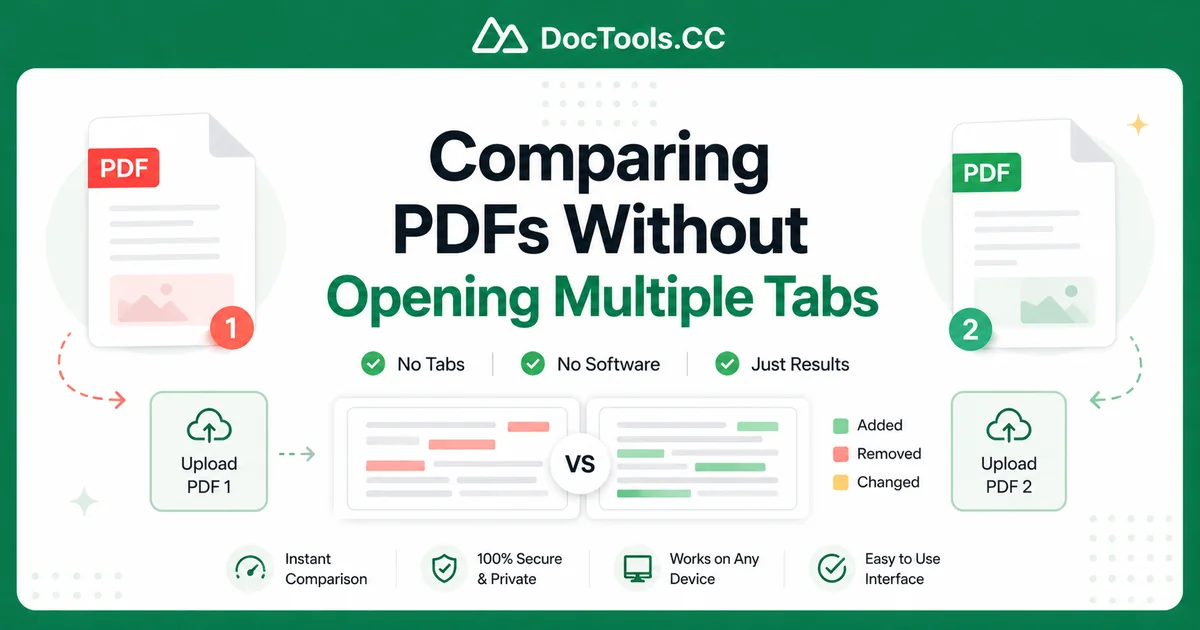
Working with multiple PDF documents can quickly become overwhelming. Opening several files in separate browser tabs or desktop applications slows down your computer and creates a cluttered workspace. That's why knowing how to compare few PDF files without open tabs is both convenient and easy with the right online tool.
DocTools.CC's Compare PDF tool lets you upload two documents and instantly see differences without opening any extra tabs or installing software. Whether you're reviewing contracts, comparing reports, or checking updated manuals, this approach saves time and keeps your browser clean.
In this guide, you'll discover exactly how to compare PDFs efficiently. We'll walk through simple steps, share pro tips, and show you how this method beats traditional ways of comparing documents.
Why Comparing PDFs Without Opening Multiple Tabs Matters
Traditional PDF comparison often requires opening two programs side by side or multiple browser tabs. This approach eats up RAM, slows down your device, and makes it easy to lose track of which version you're viewing. By using an online tool, you handle everything in one clean interface.
Our Compare PDF tool highlights added, removed, or modified text automatically. You don't need to scroll through pages manually or open both files separately. Everything happens securely in your browser without storing your documents on our servers.
This method is especially useful for professionals who handle multiple document versions daily. Lawyers, editors, project managers, and students all benefit from a streamlined comparison process that keeps their workspace organized.
How to Compare Few PDF Files Without Open Tabs
Follow these straightforward steps to compare your PDF documents quickly and accurately:
- Go to the Compare PDF tool on DocTools.CC.
- Click the "Choose File" button for the first document (original version) and select your PDF from your computer.
- Click the "Choose File" button for the second document (revised version) and upload it.
- Click the "Compare PDFs" button to start the analysis.
- Review the results shown side by side with differences clearly highlighted in different colors.
The entire process typically takes less than 30 seconds, even with large files. Our tool works directly in your browser, so you never need to open additional tabs or switch between applications.
Understanding the Comparison Results
Once your documents are compared, the tool displays both PDFs next to each other. Changes are highlighted as follows:
- Red highlights show content that was removed from the original document.
- Green highlights indicate new content added in the revised version.
- Blue highlights mark areas where text has been modified.
You can scroll through both documents simultaneously, making it easy to locate and understand every difference. The tool also provides a summary of total changes found, helping you quickly assess the scope of revisions.
Comparing More Than Two PDFs
While our primary tool focuses on comparing two documents, you can easily run multiple pairwise comparisons. For instance, if you need to compare three versions (A, B, and C), first compare A and B, then compare B and C. This systematic approach lets you track changes across several iterations without ever opening multiple tabs.
Tips & Best Practices for PDF Comparison
To get the most accurate results when comparing PDFs, follow these practical tips:
- Use the same document format and font settings for both files whenever possible. This reduces false positives in the comparison.
- Keep file sizes under 50MB for fastest processing. For larger files, consider using our PDF to TXT converter first to extract the text content.
- Name your files clearly (like "Report_v1.pdf" and "Report_v2.pdf") so you can easily track which version is which.
- Check both text and visual elements. Our tool focuses on text changes, but you should also visually scan for layout shifts.
- Consider combining related PDFs first using our Merge PDF tool if you need to compare several sections at once.
For best results, avoid scanned PDFs or image-based documents. The comparison tool works most effectively with text-based PDFs that contain selectable text.
Common Use Cases for Online PDF Comparison
Professionals across many fields rely on quick PDF comparison tools. Here are some popular scenarios:
Legal professionals compare contract drafts to spot modifications between versions. This helps identify changes during negotiation stages without opening multiple applications.
Academic researchers review paper revisions or compare their work with similar publications. The ability to compare PDFs without multiple tabs keeps their research workspace clean and focused.
Business teams verify that marketing materials, reports, and proposals match previous versions before distribution. This prevents costly mistakes and maintains brand consistency.
Technical writers track documentation updates across product versions. Being able to compare few PDF files without open tabs makes version control simple and visual.
Advantages of Online PDF Comparison Tools
Using an online solution like our Compare PDF tool offers several key benefits compared to desktop software:
- No installation required – works on any device with a modern browser.
- Completely free to use with no signup needed.
- Privacy-focused design that processes files locally in your browser.
- Fast performance without slowing down your computer.
- Regular updates to improve accuracy and add new features.
Unlike desktop programs that require regular updates and may have compatibility issues, our online tool is always ready to use and works consistently across Windows, Mac, and Linux systems.
Troubleshooting Common Issues
If you encounter problems while comparing PDFs, try these quick fixes:
Files won't upload: Check that your PDFs aren't password-protected or corrupted. Ensure you're using a modern browser like Chrome, Firefox, or Edge.
Comparison takes too long: Very large files may take longer to process. Try reducing file size by removing unnecessary images or using our PDF to TXT converter for text-only comparison.
Results seem inaccurate: Make sure both documents use similar layouts. Scanned documents or PDFs with complex formatting may produce less accurate results.
Most users experience smooth performance when following the recommended file guidelines and using standard PDF formats.
Conclusion
Learning to compare few PDF files without open tabs is a game-changer for productivity. The process is convenient, fast, and remarkably easy using the right online tool. By eliminating the need for multiple applications or cluttered browser tabs, you can focus on what matters most – understanding the actual differences in your documents.
Whether you're a professional handling contracts, a student reviewing research papers, or anyone who works with multiple document versions, this approach saves valuable time. Ready to experience the difference for yourself? Try our free Compare PDF tool today and transform how you handle document comparisons.
No downloads. No installations. Just quick, accurate results that help you work smarter.
Frequently Asked Questions
Can I compare PDF files without opening them in separate tabs?
Yes. Our online Compare PDF tool allows you to upload and analyze two documents in a single browser window without opening multiple tabs or additional programs.
Is it safe to upload confidential PDFs for comparison?
Our tool processes files directly in your browser without storing them on our servers. For maximum privacy, avoid uploading highly sensitive documents.
How accurate is the online PDF comparison tool?
The tool provides high accuracy for text-based PDFs. It clearly highlights added, removed, and changed content. Results may be less precise with scanned image PDFs.
What is the maximum file size for PDF comparison?
We recommend keeping files under 50MB for best performance. Larger files may take longer to process or fail to upload successfully.
Can I compare more than two PDF files at once?
Our tool compares two PDFs at a time. For multiple documents, compare them sequentially (version 1 vs 2, then 2 vs 3) to track changes across several iterations.