The Flawless PDF Paradox: When Perfection Raises Suspicion
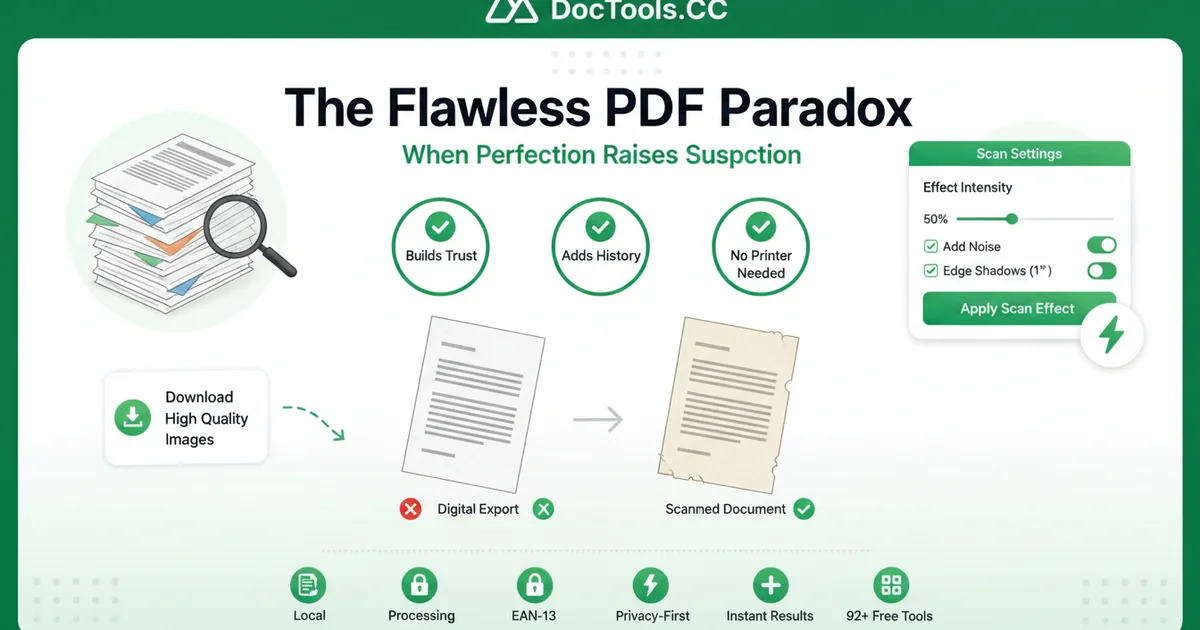
A flawlessly formatted PDF can actually work against you — and in banking, legal, and HR contexts, that clinical perfection quietly signals something is off.
When professionals need to know how to make a PDF look scanned, they're solving a real credibility problem. Digital exports from Word, Google Docs, or design tools carry an unmistakable sterility: razor-sharp edges, uniform fonts, zero paper texture. To a trained eye — a loan officer, a paralegal, a compliance reviewer — that visual cleanliness can trigger skepticism rather than confidence.
"A perfectly clean PDF straight from Word raises eyebrows in those teams — it looks auto-generated, not handled by a real person." — stampsig.com
The psychological gap between a digital export and a "handled" document runs deeper than aesthetics. Physical paperwork carries implicit history — it has been touched, filed, and processed. Even minor visual cues like slight rotation, subtle grain, or softened edges communicate that a document passed through real hands. A native PDF carries none of that narrative. It feels assembled, not processed.
The shift toward human-centered document design reflects this tension. As more workflows go fully digital, organizations are paradoxically placing greater weight on documents that feel tangible. Legal firms archiving decades of case files, banks matching submission packets to existing paper records, and HR departments reviewing onboarding forms all operate within visual ecosystems built around physical documents. A digitally pristine file disrupts that ecosystem.
Understanding this dynamic is the first step — but knowing which specific visual signals actually build trust is what separates a convincing document from one that still reads as synthetic. That's exactly where the real mechanics of scanned-document aesthetics come in.
Why Scanned Effects Build Professional Credibility
Scanned visual cues — noise, edge shadows, and slight discoloration — signal that a document has a physical history, and that history builds trust.
When reviewers in banking, HR, or legal departments process files daily, they develop an intuitive sense for what "real" paperwork looks like. A document that matches the visual texture of physical archives blends seamlessly into existing workflows rather than raising quiet flags.
The psychological benefits of a tangible, scanned aesthetic are well-documented:
Noise and grain suggest the document passed through a physical process, reinforcing its perceived legitimacy.
Edge shadows and slight yellowing mimic paper aging, signaling the document has real-world provenance.
Tonal inconsistency matches what reviewers already see in existing file archives, reducing cognitive friction.
A tangible feel on application documents subtly signals care and attention to professional presentation norms.
According to digitalgovernmenthub.org, 86% of users report increased confidence in documents featuring purposeful, human-centered design choices — a compelling case for intentional imperfection.
In practice, many professionals choose to make PDF look scanned online free using accessible tools rather than running paper through a physical machine. The goal isn't deception — it's contextual fit. Understanding which specific visual elements actually replicate a scanner's output is the critical next step.
Anatomy of an Authentic Scan Effect
Three specific visual layers work together to add scanner effect to PDF files convincingly — and understanding each one helps you calibrate the result with precision.
Micro-blur and pixelation are the first tell. Real scanners introduce slight optical softening as the sensor reads reflected light, meaning perfectly crisp digital fonts are an immediate giveaway. Introducing a controlled micro-blur rounds the hard edges of letterforms just enough to mimic sensor diffusion without making text unreadable.
Page tilt and rotation carry equal weight. Physical document feeders never align paper with mathematical perfection — there's always a fractional skew, somewhere between 0.5° and 2°. A straight-on digital page, by contrast, reads as artificially composed. A subtle rotation simulates the casual imprecision of a real scan run.
Brightness and contrast shifts complete the illusion. Scanner lamps introduce mild washout across lighter regions and slight shadow compression in darker areas. According to iScanner, adding subtle paper textures, warm tints, or micro-blur helps digital files blend seamlessly with archived paperwork — a detail most people overlook but reviewers instinctively register.
Used in combination, these three elements produce a layered, believable scan. Once you understand what the effect is made of, choosing the right tool to apply it becomes a much more straightforward decision.
How to Make a PDF Look Scanned Online (The Fast Way)
The fastest path to a convincing scanned look requires just three deliberate steps — and the right tool makes all the difference.
Anyone searching "make pdf look scanned reddit" quickly discovers the same advice repeated across threads: use a browser-based tool that processes files locally. Client-side processing means your document never leaves your device, which matters enormously for contracts, invoices, or any sensitive file.
Here's the practical workflow:
Select a privacy-first tool. Choose a browser-based option that handles processing on your device rather than uploading to a remote server. Check the platform's data policy before you start.
Upload your PDF and apply the scan filter. Look for options labeled "Scan," "Noise," or "Paper Texture." As stampsig.com notes, slight page tilts and noise together signal physical authenticity — so enable both when available.
Adjust intensity carefully. A subtle setting (30–50% on most sliders) adds credibility without degrading readability. Push too high, and text becomes difficult to parse — defeating the purpose entirely.
Bold tip: Never process sensitive documents with tools that require server uploads or account creation.
Once you've mastered applying effects to existing PDFs, the next logical question is whether you can start from a photo instead — and the answer opens up a surprisingly flexible set of options.
Converting Photos to Scanned Documents
Applying a scan effect for digital documents isn't limited to existing PDFs — smartphone photos can become polished, professional files with the right approach.
Many users search for ways to skip desktop software entirely and convert phone photos directly into scanned-looking PDFs. It's a common workflow, especially when a physical document is nearby but a scanner isn't.
Perspective correction is the essential first step. Photos taken at an angle distort the document's shape. A good conversion tool automatically detects the document edges and warps the image back into a flat, rectangular format — mimicking what a flatbed scanner produces.
JPG and PNG to PDF conversion should preserve resolution while compressing file size intelligently. In practice, a well-processed document photo produces a crisp, readable PDF without bloated file sizes — useful whether you're converting a receipt, contract, or handwritten note. Tools that handle legal or business documents benefit especially from clean output.
Shadow removal is where phone-based capture typically falls short. Overhead lighting creates dark gradients across the page. Automated background normalization strips those gradients, leaving an even white field that looks indistinguishable from a real scan.
One caveat: results depend heavily on the original photo's lighting and focus. Blurry source images limit what any tool can recover. Before processing, that's worth keeping in mind — and it leads naturally into another consideration most users overlook: what happens to your document after you upload it.
Privacy and Security in Document Processing
Uploading sensitive documents to unknown cloud servers is one of the most overlooked risks in everyday document workflows. Tax forms, legal agreements, and financial records contain personally identifiable information that can be exposed if a processing server is compromised, misused, or simply retains files longer than advertised.
Cloud vs. Local Processing — a key distinction:
Cloud-based tools send your file to a remote server, where processing happens outside your control. Data retention policies vary widely, and not all services are transparent about what they store or for how long.
Client-side (browser-based) tools handle everything on your local device. Your file never leaves your machine, which eliminates server-side exposure entirely.
Local processing is the gold standard when working with anything sensitive. In practice, the safest approach is to verify a tool's architecture before uploading a single page.
Doctools addresses this directly — all document processing stays on the user's device, meaning sensitive data is never transmitted to an external server. For anyone handling tax filings, contracts, or ID-adjacent paperwork, that distinction matters enormously. You can review how Doctools is built to understand its privacy-first approach.
As you'll see in the next section, these privacy considerations become especially relevant in specific real-world scenarios — from submitting tax forms to managing mixed-source document archives.
Common Use Cases for the 'Fake Scan'
The 'scanned' look solves real workflow friction — and knowing when to apply it can save hours of back-and-forth with legacy systems.
A scanned appearance adds a layer of physicality that signals a document has been printed, handled, and signed — and certain recipients specifically expect that signal, per stampsig.com.
Tax and payroll forms. Submitting a W-9 or 1099 to a traditional accounting department is a classic scenario. Many older finance teams flag pristine digital PDFs as incomplete or unsigned. Applying a subtle grain and slight tilt communicates that a physical step occurred, which satisfies their internal checklist without anyone touching a printer.
Contract archive consistency. When digital signatures need to live alongside scanned physical contracts in the same archive, mismatched aesthetics create friction during audits. A uniform scan effect brings every document in line, regardless of its origin.
Mixed-source portfolios. Designers, consultants, and freelancers often assemble proposal packets from multiple sources — some native PDFs, some photographed pages. A consistent scan treatment unifies everything into a single, cohesive presentation. Browser-based document processing tools make this quick without installing specialized software.
These scenarios cover the most common situations — but the broader principles behind why this technique works are worth summarizing clearly.
The Bottom Line: Key Takeaways
A document's visual presentation directly shapes how administrators, institutions, and legacy systems perceive its legitimacy — and the 'scanned' look remains the most reliable bridge into those workflows.
According to digitalgovernmenthub.org, purposeful design choices in forms measurably boost public confidence in document validity. That insight applies directly here: subtle grain, slight tilt, and natural shadow aren't cosmetic tricks — they're trust signals embedded in how people process official documents.
A 'scanned' PDF isn't about deception — it's about fluency in the visual language legacy systems expect.
Here are the four things worth remembering:
Visual noise works. Tilt and texture increase perceived authenticity, helping digital documents pass through manual review processes without friction.
No hardware required. Browser-based tools handle the entire transformation — no printer, no scanner, no desktop software needed.
Privacy matters. Always prioritize tools that process files locally on your device rather than uploading to unknown servers.
It's a professional bridge. The scanned aesthetic exists to close the gap between modern digital workflows and older administrative expectations.
For teams handling high document volumes, pairing scan-style formatting with broader PDF conversion and file management capabilities creates a complete, efficient workflow — which is exactly where the right toolset makes all the difference.
Streamline Your Workflow with Doctools
The fastest path from a polished digital PDF to a submission-ready scanned document runs through a single, no-friction platform. Doctools removes every barrier between you and a professional result — no software downloads, no account creation, no wasted time.
With a suite of 92+ free tools covering everything from image manipulation to automated form generation, Doctools handles the full document lifecycle in one place. Need to apply a scanned texture, adjust file size, or reduce a bulky PDF before submission? Each tool delivers instant results directly in your browser.
For US-based users, the advantage runs even deeper. Doctools includes ready-made templates for common tax and legal forms — already formatted to match what American institutions expect — so you can apply a scanned style and move straight to submission without reformatting from scratch.
In practice, the tools that save the most time are the ones you never have to think about. Doctools is built on exactly that principle: reliable, accessible, and always free.
Visit Doctools.cc today and turn any digital PDF into a scan-ready document in minutes.