Add Page numbers Without Software in Minutes
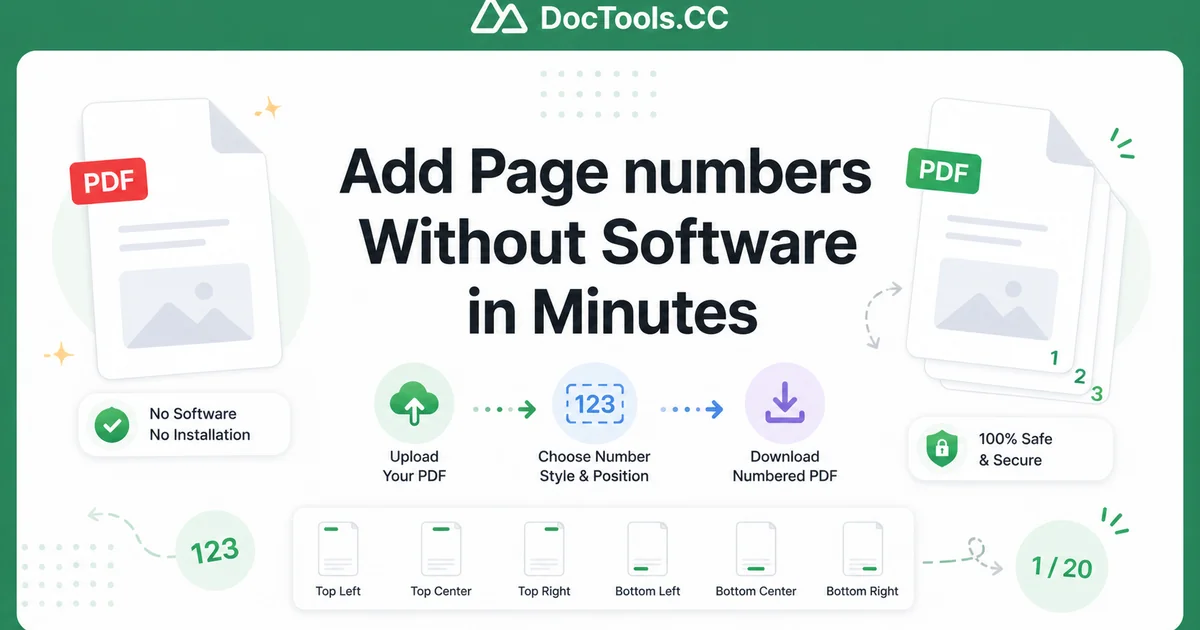
Adding page numbers to a PDF used to mean buying expensive software or struggling with complicated programs. Today you can write page numbers without software in just a few clicks using free online tools. This guide shows the easiest way to update your file, add clear page numbers, and download a perfectly numbered document without installing anything.
Whether you have a 10-page report, a 200-page thesis, or a multi-chapter ebook, numbering pages makes documents look professional and easy to navigate. The best part? You can do it directly in your browser—no downloads, no payments, and no learning curve.
DocTools.CC offers a free Number Pages tool that handles everything for you. Just upload your PDF, choose your numbering style, and download the finished file within seconds.
Why You Need to Add Page Numbers to PDFs
Page numbers help readers find information quickly. They give documents a polished, official appearance for business reports, academic papers, contracts, or instruction manuals. Without numbers, long PDFs become confusing and unprofessional.
Traditional methods require Adobe Acrobat, Microsoft Word, or other paid programs. These solutions often need installation, create compatibility issues, or limit free usage. The modern solution lets you write page numbers without software using only a web browser on any device.
How to Write Page Numbers Without Software in Minutes
Follow these simple steps to number your PDF pages instantly using our free online tool:
- Go to the Number Pages tool — Visit Number Pages on DocTools.CC. No account or sign-up is required.
- Upload your PDF file — Click the upload button and select your document from your computer, Google Drive, or Dropbox. The tool works with any size PDF.
- Choose your page numbering style — Select where to place numbers (top, bottom, left, right). Pick from various formats like "1, 2, 3", "Page 1 of 10", Roman numerals, or custom text.
- Set the starting number — Decide if numbering should begin on page 1 or skip cover pages. You can also choose specific page ranges.
- Customize appearance — Adjust font size, color, and position to match your document design. Preview the result before processing.
- Process the file — Click the "Number Pages" button. Our tool updates the file quickly while keeping your original layout and quality.
- Download your numbered PDF — Save the ready file to your device. The download link stays available for 24 hours.
The entire process takes less than two minutes even for large files. You can write page numbers without software on Windows, Mac, Linux, tablets, or phones.
Understanding Different Page Numbering Options
Our free tool offers many ways to number your pages. You can add plain numbers, "Page X of Y" format, chapter prefixes, or even custom text like "Confidential - Page 1". This flexibility helps match any document requirement.
For academic work, use Roman numerals for front matter (i, ii, iii) and switch to regular numbers (1, 2, 3) for the main content. Business reports often prefer simple numbering at the bottom center. Legal documents might need numbers in the footer with date stamps.
The Number Pages tool lets you control all these options without complicated menus or technical knowledge. You see a live preview so you can adjust before finalizing.
Tips & Best Practices
Keep these suggestions in mind when adding page numbers to your PDFs:
- Use consistent positioning—bottom center works best for most documents as it doesn't interfere with content.
- Choose a font size between 8-12 points so numbers are visible but not distracting.
- For documents with covers or title pages, start numbering on the second or third page.
- Test your numbered PDF on different devices to ensure everything looks correct.
- Keep a backup of the original unnumbered file in case you need to make changes later.
- Combine with other tools like Add Text to PDF for headers or footers.
When working with multiple files, consider using the Merge PDF tool first to combine documents before numbering. For sensitive documents, you can add protection using the Watermark PDF tool alongside page numbers.
Common Problems and How to Solve Them
Some PDFs have protected content that prevents editing. Our online tool bypasses many restrictions by creating a new version of your document with embedded page numbers. If you encounter issues, try converting the file to standard PDF format first.
Large files with hundreds of pages may take slightly longer to process. The progress bar shows exactly how much time remains. Your files stay private and are automatically deleted from our servers after processing.
If the numbering doesn't appear correctly, double-check your margin settings. Page numbers need space in the header or footer area. Our tool automatically adjusts for standard margins.
Benefits of Online PDF Numbering Tools
Using free web-based tools like Number Pages offers many advantages:
- No installation or updates needed
- Works on any operating system
- Completely free with no hidden costs
- Fast processing even for big files
- Secure handling of your documents
- Accessible from anywhere with internet
Students, small business owners, and freelancers especially benefit from this approach. Instead of buying expensive desktop software for occasional use, they can write page numbers without software whenever needed.
Advanced Numbering Techniques
Beyond basic numbering, you can create professional-looking documents with these methods:
Skip first pages: Many reports don't number the title page. Our tool makes it easy to start numbering from any page you choose.
Different sections: You can number the table of contents differently from the main body. This creates clear separation between document parts.
Custom prefixes: Add text like "Report-" or "Appendix-" before each number for better organization in complex files.
Experiment with these options using the preview feature. The live update shows exactly how your final document will look before you process the file.
Security and Privacy of Online Tools
Many people worry about uploading sensitive documents to online services. DocTools.CC takes privacy seriously. All files are processed securely using encrypted connections. After you download your numbered PDF, the original and processed files are automatically removed from our servers.
You never need to create an account or share personal information. This approach keeps your data safe while giving you powerful PDF tools for free.
For highly confidential documents, you can further protect them with watermarks using our Watermark PDF tool that works seamlessly alongside page numbering.
Comparing Free vs Paid PDF Solutions
Paid programs like Adobe Acrobat offer many features but cost hundreds of dollars per year. For simply adding page numbers, these expensive tools are overkill. The free online method does the job faster with less complexity.
Free desktop software often comes with advertisements, limited features, or security risks. Online tools avoid these problems by running in your browser without installation. Updates happen automatically, ensuring you always have the latest version.
Most users only need to add page numbers occasionally. Using a free solution like our Number Pages tool saves both time and money compared to traditional software.
Writing page numbers without software has never been easier. Our simple interface guides you through each choice while powerful processing handles the technical details behind the scenes.
Conclusion
You no longer need expensive programs or technical skills to create properly numbered PDFs. With the free Number Pages tool from DocTools.CC, you can write page numbers without software in minutes and download your ready file instantly.
Try it now with your own document. Upload a PDF, add professional page numbers, and see how much better your materials look. The process is quick, secure, and completely free. Stop struggling with complicated software and start creating perfectly numbered documents today.
Ready to number your pages? Visit the Number Pages tool and transform your PDFs in seconds.
Frequently Asked Questions
Can I really write page numbers without software or installing anything?
Yes. Using our free online Number Pages tool, you can add page numbers directly in your web browser without downloading or installing any software.
Is the online PDF numbering tool completely free?
Yes, the basic page numbering feature is free with no hidden fees or watermarks added to your documents. Premium options are available for advanced needs.
Will the quality of my PDF change when I add page numbers online?
No. Our tool maintains the original quality, layout, fonts, and images of your document while adding clean, professional page numbers.
Can I choose where the page numbers appear on the page?
Yes. You can place numbers at the top or bottom, left, center, or right side. You can also customize font size, color, and style.
What happens to my uploaded PDF file after processing?
Your files are automatically deleted from our servers after you download the numbered version. We take privacy and security very seriously.